
The quickest way to learn how to convert image to PDF is to drop the image into a free online converter and download the PDF it makes. It works for JPG, PNG, and most other image formats, takes under a minute, and needs no software. Your phone and your computer can also do it with built-in tools, which is the better choice when the image is private or you need to convert several at once.
This guide covers every route: the online converter, batch conversion of multiple images into one PDF, iPhone and Android, and the built-in tools on Windows and Mac. It also answers the two questions people ask most: does converting change the quality, and what is the best way to turn a stack of photos into a single document?
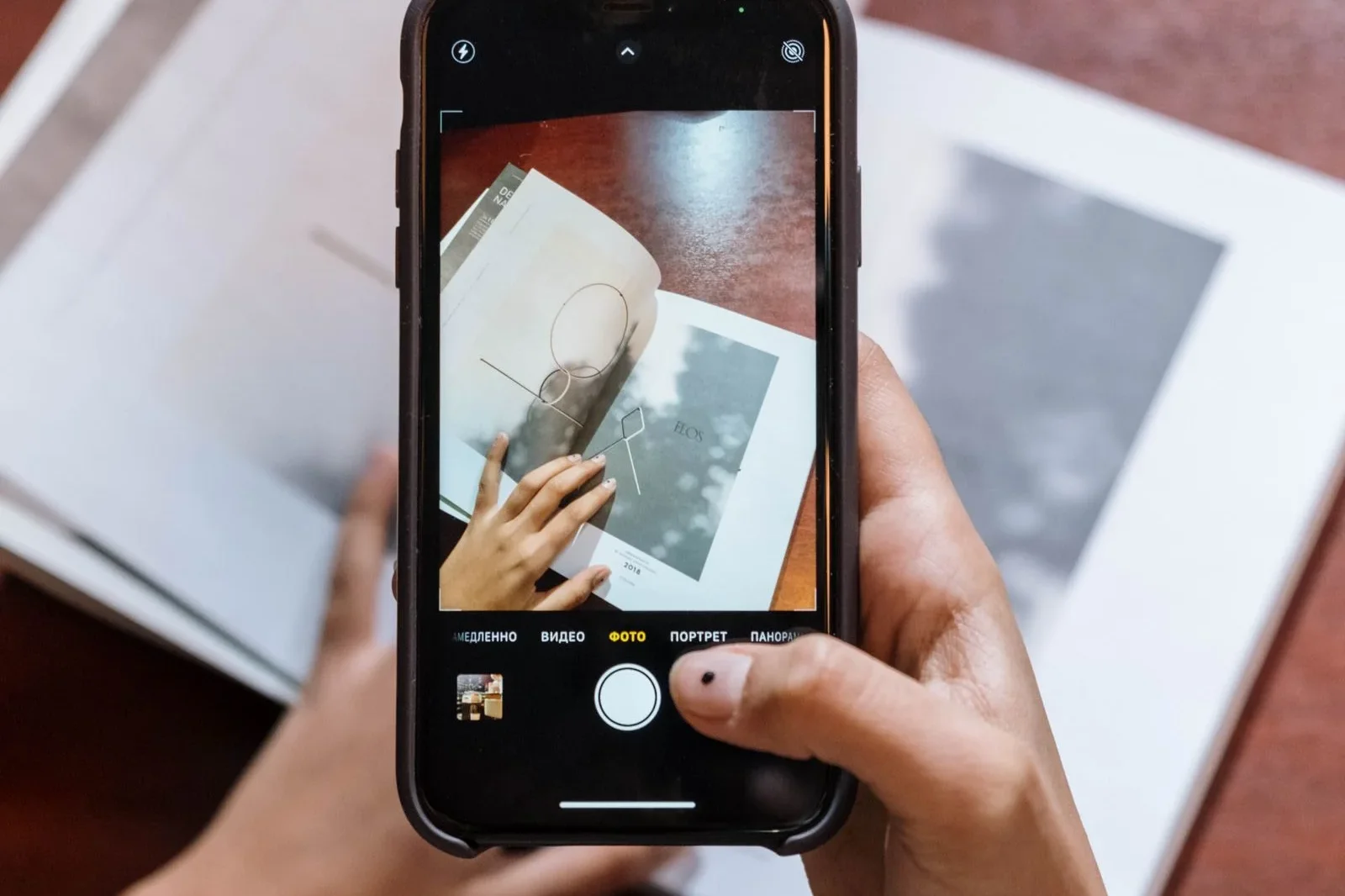
How to Convert Image to PDF Online (No Install)
For a one-off conversion, the online route is hard to beat. Open Toollan’s free Image to PDF Converter, upload your image (or drag it onto the page), and download the PDF. JPG and PNG both work, and the PDF keeps the image at its original size and quality.
The online converter is the right choice when you are on a borrowed computer, when you need the file quickly, or when you want to convert several images at once and control the page order before you download. It runs in any browser, on any device.
One honest limitation: an online converter sends your file to a server (or processes it in your browser tab, depending on the tool). For a photo of a whiteboard or a product shot, that does not matter. For a scan of your passport, a bank statement, or a signed contract, use a built-in tool on your own device instead — the iPhone, Android, Windows, and Mac methods below all work offline and keep the file on your hardware.
How to Combine Multiple Images Into One PDF
Most of the time, one image means one PDF page. But the common real-world job is turning a set of images — photos of each page of a form, pictures of receipts, screenshots of a document — into a single PDF file. Every method in this guide can do that; the difference is how much control you get over the page order.
Online: upload all the images to the Image to PDF Converter in one go. Arrange them in the order you want the pages to appear, then download a single PDF. This is the easiest way to control order, because you can see the images and drag them around before converting.
On iPhone: save the images to the Files app, select them all, and use the Create PDF command (steps below). The pages follow the order the files are listed in.
On Windows: select the images in File Explorer, right-click, and choose Print. In the print window, pick Microsoft Print to PDF as the printer. The images print into one PDF in the order you selected them.
On Mac: select the images in Finder, right-click, and choose Quick Actions > Create PDF. The pages come out in the order you selected the files.
If you already have separate PDFs and need to join them, that is a different job — use the free PDF Merger to combine finished PDF files into one document.
Convert JPG/PNG to PDF on iPhone and Android
iPhone: three built-in ways, no app needed
Your iPhone can turn a photo into a PDF without downloading anything. The Files app method is the most capable, because it handles several images at once and lets you control the page order.
Files app (best for one or more images):
- Save the image to the Files app if it is not there already (in Photos, tap Share, then Save to Files).
- Open Files and find the image. To convert several at once, tap Select and tap each image.
- Long-press the image (or tap the three-dot menu with several selected) and tap Create PDF.
- The PDF appears in the same folder, ready to share or save.
Photos app print trick (fastest for a single photo): open the photo in Photos, tap Share > Print, then tap the Share button on the print preview and choose Save to Files. You are not printing anything — the preview screen is just the route iOS uses to make the PDF. On older iOS versions, pinch outward on the preview instead to open the full-screen preview, then share it.
Books app (simplest single-image route): open the photo, tap Share, and tap Books. The image opens in Books as a PDF.
All three methods accept JPG, PNG, and HEIC — the format your iPhone camera uses by default — so there is no need to convert HEIC to JPG first.
Android: use the print menu
On most Android phones, the built-in route is the print menu:
- Open the image in your gallery or Files app.
- Tap the three-dot menu (or Share) and choose Print.
- At the top, where the printer is listed, tap it and select Save as PDF.
- Tap the PDF button to save the file.
The exact menu names vary a little between Samsung, Pixel, and other Android phones, but the print-to-PDF option is part of Android itself, so it is there on all of them. If you are photographing a paper document rather than converting an image you already have, the Google Drive app has a built-in scanner: tap the + button and choose Scan, and it photographs the page, crops it, and saves it as a PDF.
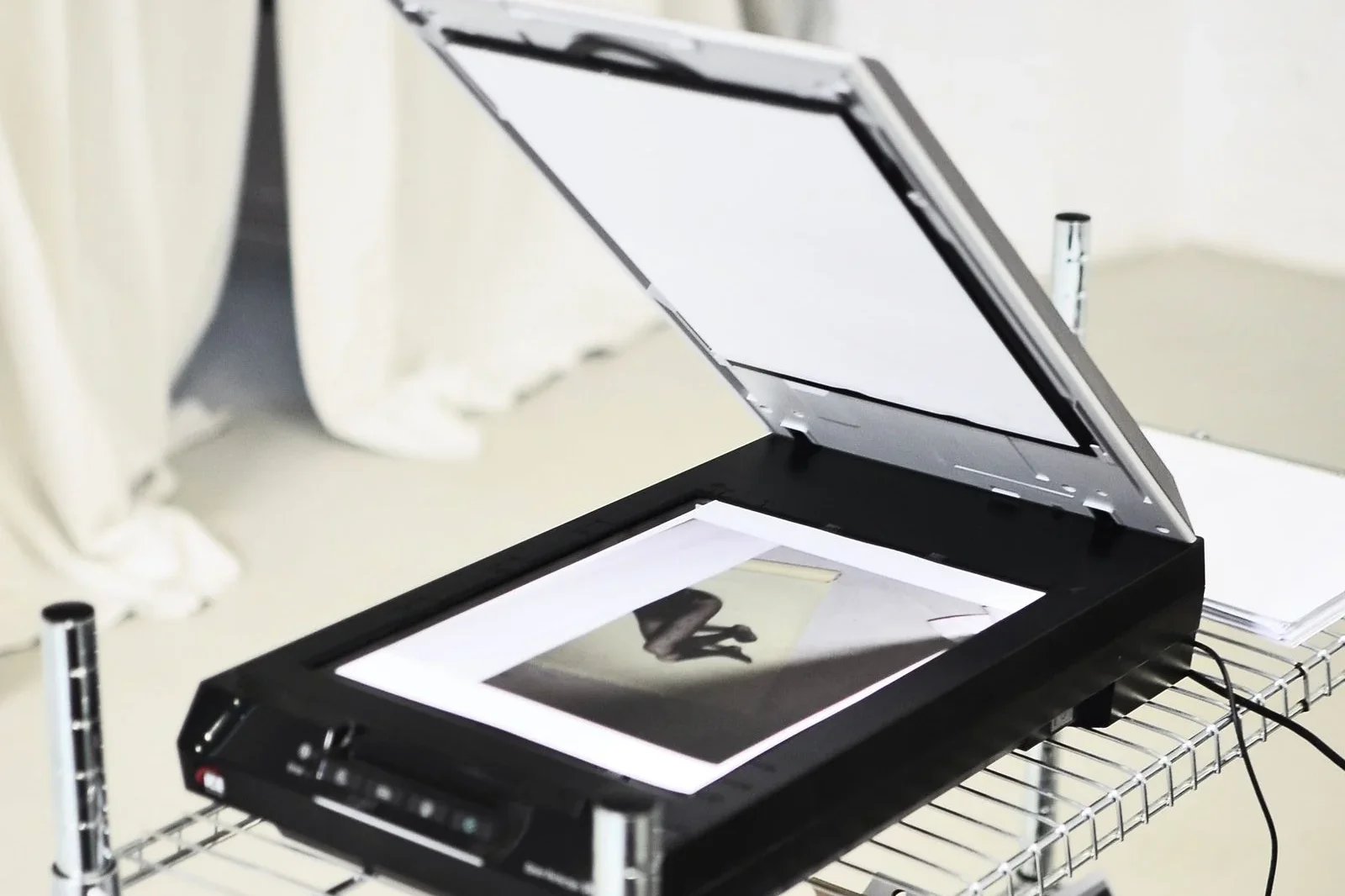
Convert an Image to PDF on Windows and Mac (Built-In)
Windows: Photos app + Microsoft Print to PDF
Windows 10 and 11 can do this without installing anything, using the virtual printer that ships with the system:
- Double-click the image to open it in the Photos app. If it opens in another app, right-click the file and choose Open with > Photos.
- Press Ctrl + P to open the print window.
- Under Printer, choose Microsoft Print to PDF.
- Pick a paper size (A4 or Letter) and orientation, then click Print and choose where to save the PDF.
To convert several images into one PDF, select them all in File Explorer first, right-click, and choose Print — the same window opens with all of them, and the PDF gets one page per image. One thing to watch: the print method is made for paper, so a very large photo may be scaled to fit the page. For most uses that is fine, but if you need the image at its full pixel size, the online converter is the better choice.
If Microsoft Print to PDF is missing from the printer list, it may have been switched off. Turn it back on under Settings > Apps > Optional features, or under Turn Windows features on or off in the Control Panel.
Mac: Preview or Finder
On a Mac, Preview — the app that opens images by default — can export any image as a PDF:
- Open the image in Preview.
- Go to File > Export as PDF.
- Choose a name and location, and click Save.
For several images at once, select them in Finder, right-click, and choose Quick Actions > Create PDF. The pages appear in the order you selected the files, so select them in the order you want. This is the fastest batch route on a Mac, and it works for a mix of JPG and PNG files in the same batch.
JPG vs PNG to PDF: Does Quality Change?
Converting an image to PDF does not improve its quality, and it does not need to reduce it either. A PDF is a container: the image goes inside it at whatever quality it already has. A blurry photo stays blurry, and a sharp photo stays sharp. What changes is the file around the image, not the image itself.
The difference between JPG and PNG matters before the conversion, not during it. JPG uses lossy compression, which throws away some detail to make the file smaller — fine for photos, where the lost detail is hard to see. PNG uses lossless compression, which keeps every pixel — better for screenshots, diagrams, and anything with sharp text or lines. A PNG of a screenshot stays crisp where a JPG of the same screenshot can look fuzzy around the letters.
Two practical consequences. First, PNG files are usually bigger than JPG files of the same image, so a PDF made from PNGs is bigger too. If the PDF ends up too large to email or upload, our guide on how to compress a PDF without losing quality shows how to shrink it. Second, PNG supports transparency, and some converters flatten a transparent background to white when they build the PDF. If your image has a transparent background and the white box matters, check the result before you send it.
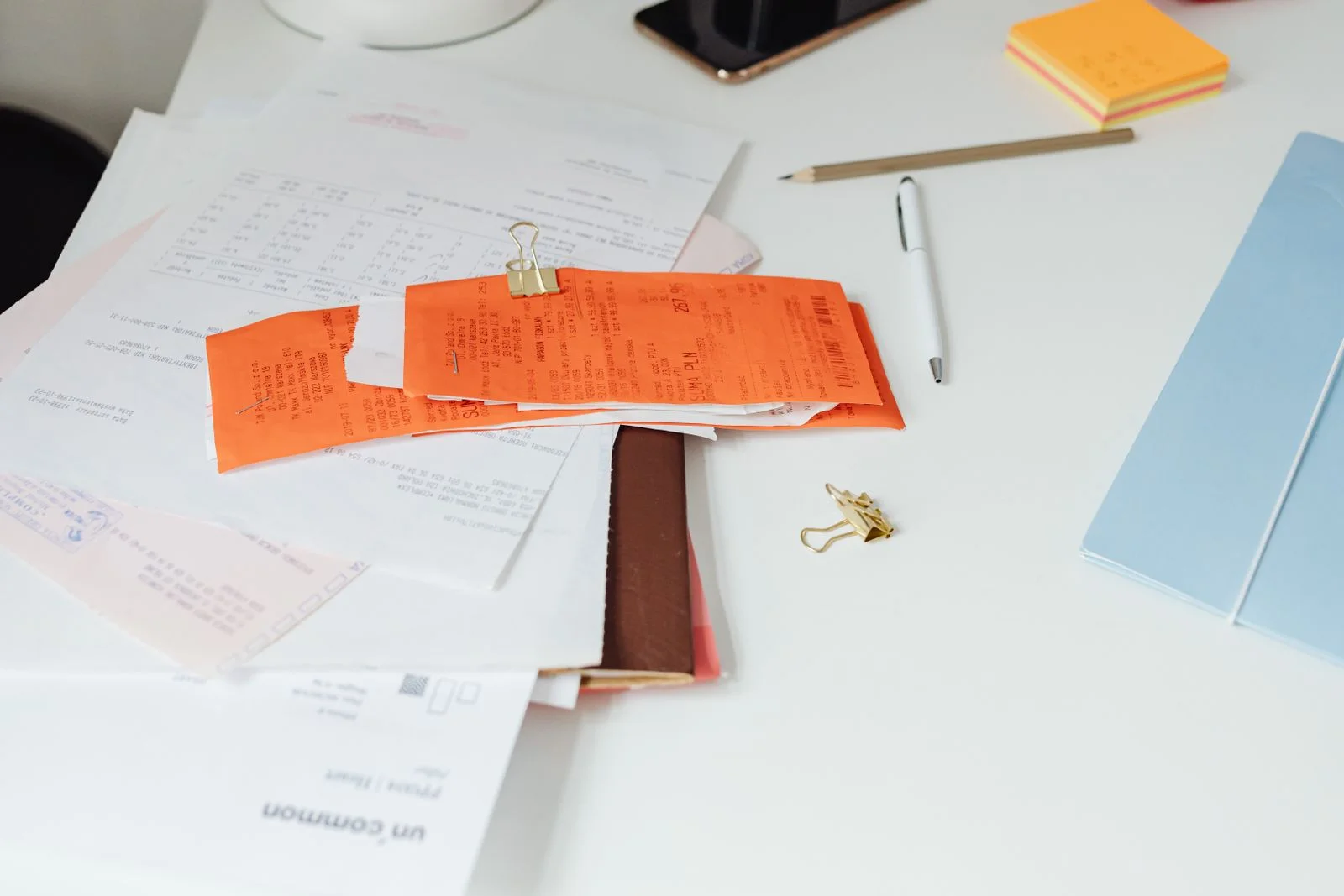
Common Uses: Forms, Receipts, Scanned Documents
Forms and applications. Job applications, visa forms, university admissions, and government portals often ask for documents as PDFs. A photo of a signed form is not accepted; the same photo converted to PDF is. If the form has several pages, combine them into one PDF in the right order before you upload.
Receipts and expenses. Photographing a receipt and converting it to PDF gives you a file that is easy to file, email to your accountant, or attach to an expense claim. One PDF per receipt keeps things tidy, or combine a month’s receipts into a single file.
Scanned documents. A scanner usually saves each page as an image. Converting those images to a single PDF turns a folder of JPGs into a document you can search, share, and print as one file. Note that a PDF made from images is a picture-only PDF: the text inside it is not selectable or searchable unless you run it through OCR (text recognition) software. For sharing and printing that does not matter, but it is worth knowing if you planned to search the text.
Sharing images that must not change. A PDF keeps the image at a fixed size and layout on any device, which is why people send portfolios, certificates, and artwork as PDFs rather than loose image files. The recipient sees exactly what you sent, whatever app they open it in.
Frequently Asked Questions
How to convert image to PDF for free?
Upload the JPG to a free online image-to-PDF converter and download the PDF, or use a built-in tool: Photos + Microsoft Print to PDF on Windows, Preview on Mac, the Files app on iPhone, or the print menu on Android. All of these are free.
Can I convert multiple images into one PDF?
Yes. Upload all the images to an online converter and arrange the page order before downloading, or use the built-in batch route on your device: select the images in the iPhone Files app and tap Create PDF, select them in Windows File Explorer and Print to PDF, or use Finder’s Quick Actions > Create PDF on Mac.
Does converting an image to PDF reduce quality?
No, not if the converter embeds the image as-is. The PDF holds the image at its original quality; a sharp image stays sharp. The print-to-PDF route on Windows can scale a very large photo down to fit the page, so use an online converter or Preview if you need the full pixel size.
Can I convert a PNG with a transparent background to PDF?
Yes, but some converters flatten transparency to a white background. If that matters for your image, check the result after converting, or place the image on the background colour you want before you convert.