
To learn how to make a QR code free, open a free QR code generator, pick the type of code you need — a website link, Wi-Fi login, menu, or contact card — paste in your content, and download the image. It takes about 30 seconds, needs no account, and the code works as soon as you print it or share it on screen.
A QR code is a square barcode a phone camera can read: the phone decodes the text or link hidden in the pattern and opens it. What matters is picking the right type of code, sizing it correctly for print, and testing it before it goes out — all covered below.
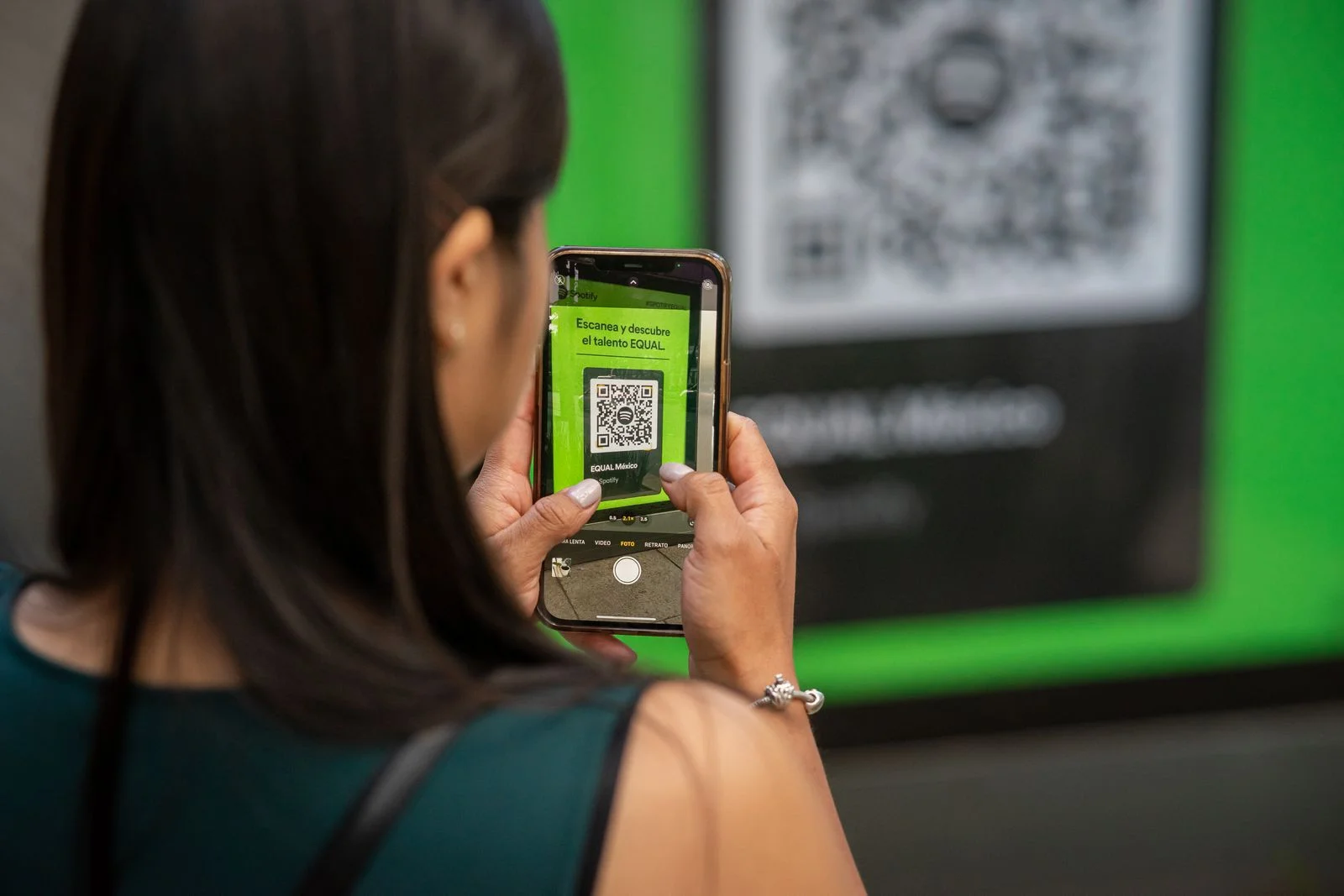
How to Make a QR Code Free Online in 30 Seconds (No Sign-Up)
You do not need an app or an account. Any modern browser can generate a code in a few steps:
- Open a free QR code generator. Toollan’s QR code generator runs entirely in your browser — nothing to install, no email address asked for.
- Pick the code type. Website URL is the default, but most generators also offer Wi-Fi, plain text, email, phone number, and contact card (vCard) options. Pick the one that matches what you want the scanner to get.
- Enter your content. For a website, paste the full address including https://. For Wi-Fi, enter the network name, password, and security type exactly as they appear on your router. One wrong character and the code will not connect.
- Generate and download. Download the PNG for screens and documents. If the generator offers SVG, take that for print — it is a vector file, so it stays sharp at any size instead of going blurry when enlarged.
- Test it before you use it. Point your own phone’s camera at the code and check that it opens the right thing. Do this before printing anything. (More on testing below.)
That is how to make a QR code free in its simplest form. The rest of this guide is about making sure the code you make is the right one for where it will live.
QR Codes for Websites, Wi-Fi, Menus, and Contact Cards
Different uses need different code types, and the details matter.
Website links
The most common use. Paste the full URL, and keep it short if you can — a shorter link makes a simpler pattern, which scans more reliably at small sizes. If your link is long, shorten it first: every extra character adds density to the code.
Wi-Fi codes
A Wi-Fi QR code stores your network name (SSID), password, and encryption type. When a guest scans it, their phone offers to join the network without them typing the password. This is ideal for a guest room, a café, or an office reception. Print it and stick it where guests can see it. Double-check the password character by character — a code with a typo in the password will look fine and fail silently.
Restaurant and café menus
A menu code usually points to a web page with the menu on it, so the code itself is just a URL code. Menus change, though: if your menu page address stays the same and you only update the page, a plain static code works fine. If the address might change, or you want scan counts, you need a dynamic code — see the next section.
Business cards and contact cards
A vCard code stores your name, phone number, email, and company, so one scan adds you to someone’s contacts. That is a lot of data for a small square, so the pattern is dense — print it at least 2.5 cm across and test it at the actual printed size. If your details change often, a code pointing to an online contact page is easier to keep current than a vCard you must reprint.
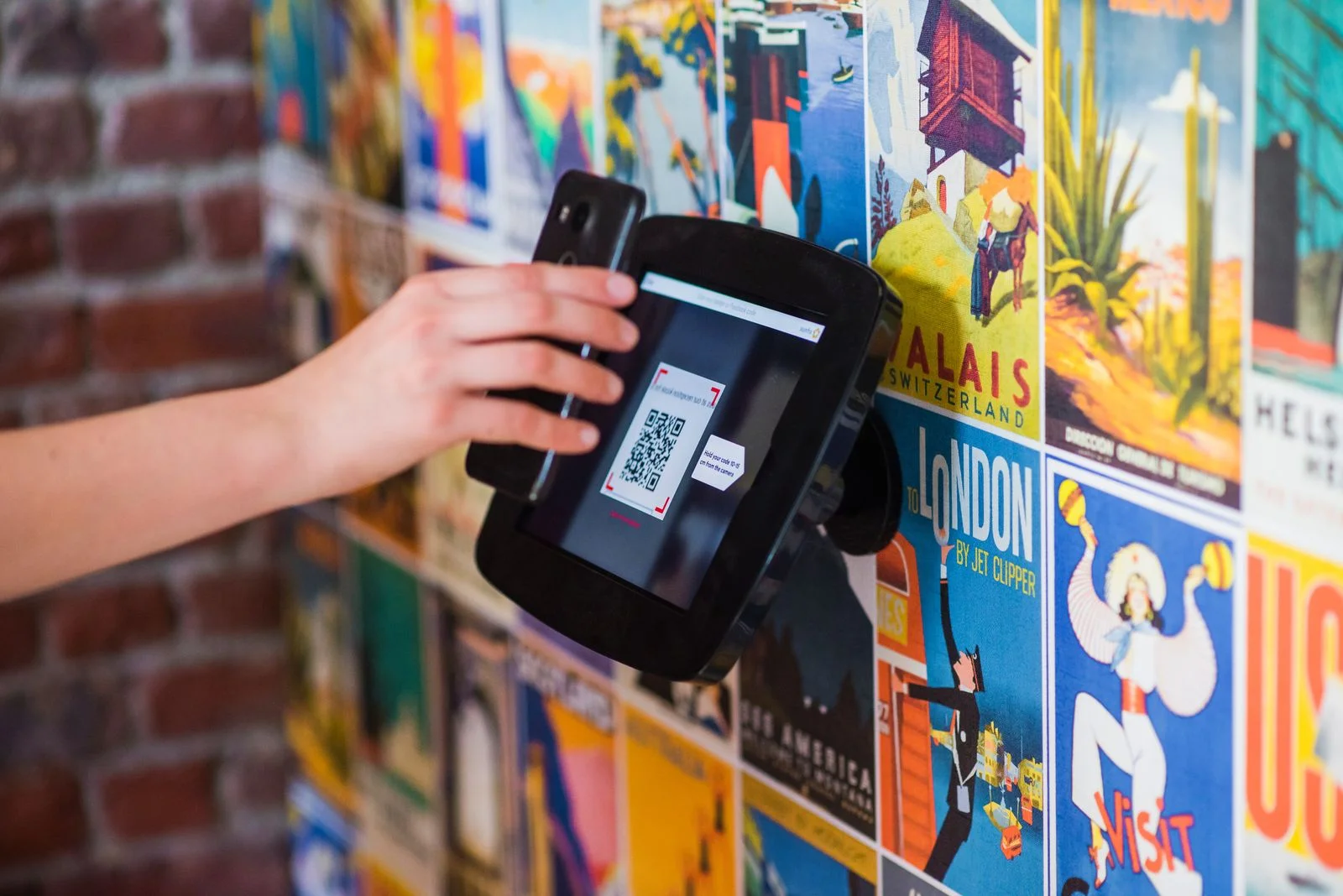
Static vs Dynamic QR Codes: What’s the Difference?
This is the one choice that trips people up, so it is worth understanding before you print anything.
A static QR code holds the destination directly in the pattern. The link or text is baked into those black and white squares, permanently. It costs nothing, it never expires, and nobody can count your scans — the code works for as long as the destination exists, and no service sits in between. The downside: if the link changes, the code is dead, and the only fix is reprinting.
A dynamic QR code holds a short redirect link instead. When someone scans it, they pass through a service that forwards them to your real destination. That means you can change the destination later without reprinting, and you can see scan statistics — how many scans, when, and roughly where from. The pattern is also simpler, because a short redirect link takes up less space than a long URL, so dynamic codes scan more reliably at small sizes.
The catch with dynamic codes is the dependency: most dynamic QR services charge a subscription after a trial, and if it lapses, every code you printed can stop working.
| Static QR code | Dynamic QR code | |
|---|---|---|
| Destination can change later | No — reprint required | Yes — edit it online |
| Scan statistics | None | Yes |
| Cost | Free, forever | Often a subscription |
| Depends on a service staying up | No | Yes |
| Pattern density | Grows with your URL length | Stays compact |
As a rule of thumb: use a static code for anything permanent — a Wi-Fi password, a business card with a fixed website, a product serial number. Use a dynamic code for anything printed in quantity that might need to change, like a marketing flyer, a seasonal menu, or event materials. If you pay for a dynamic service, set a reminder before renewal so a lapsed payment never silently kills your printed codes.
How to Test Your QR Code Before You Print It
A code that does not scan is worse than no code at all. Run through this checklist before printing:
- Scan it with your own phone. Open the camera app, point it at the code from a hand’s length away, and wait for the link preview. Tap it and confirm it opens the right page. On iPhone, the camera reads codes directly; on Android, the camera app or Google Lens does the same job.
- Test on a second phone if you can. Different cameras and apps read codes slightly differently. If it scans on two phones, it will scan on nearly all of them.
- Test at the actual print size. A code that scans on your monitor at 10 cm wide can fail at 2 cm on a business card. Print a test copy at the real size and scan that.
- Test in the real lighting. Glare on a laminated menu or a poster in bright sunlight is a common reason a code that tested fine at home fails in place.
- Check the destination on mobile data. Your menu page might load instantly on your office Wi-Fi and crawl on a guest’s phone signal. The code did its job; the page still has to load.
- Try the free scanner as a second opinion. If you want to check a code without reaching for your phone, Toollan’s QR code scanner reads a code from an image or your webcam and shows you exactly what it contains.
If a code will not scan, the usual causes are: it is printed too small for the distance, the contrast is too low (light grey on white, or a coloured code on a busy background), or something is crowding the edges. Every code needs a quiet zone — a blank margin about four of its little squares wide on all sides. Text or images touching the edge confuse scanners.
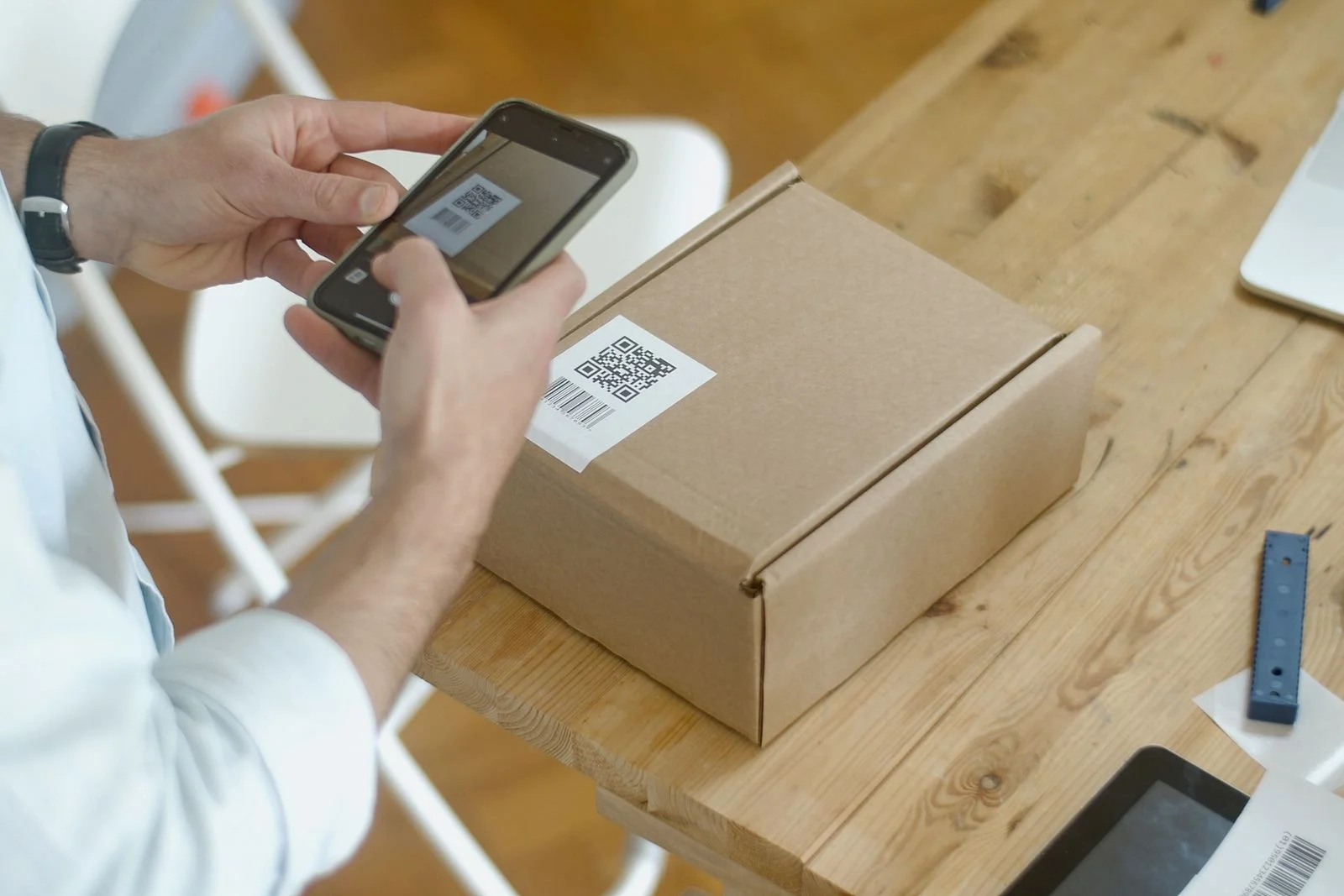
How Big Should a Printed QR Code Be?
Size decides whether a printed code scans or fails, and the rule is simple: the code should be at least one-tenth of the distance it will be scanned from — the 10:1 rule.
| Where it goes | Typical scanning distance | Minimum size |
|---|---|---|
| Business card | 15–20 cm | 2 × 2 cm |
| Table card / menu | 25–40 cm | 3 × 3 cm |
| Flyer / leaflet | 30–60 cm | 3.5 × 3.5 cm |
| A3 poster | 50 cm–1 m | 7 × 7 cm |
| Outdoor sign | 1–3 m | 15 × 15 cm |
| Billboard | 5–10 m | 50 × 50 cm |
A few practical notes on sizing:
- 2 × 2 cm (about 0.8 inches) is the floor for anything scanned at close range. Below that, most phone cameras struggle, especially older ones.
- Dense codes need more room. A static code holding a long URL has more modules (the little squares) packed in, so it needs to be printed larger than a simple code at the same distance. If your code looks very busy and detailed, go a size up.
- Add 20–30% as a safety margin. Real-world scanning involves poor lighting, shaky hands, and imperfect angles. A code slightly larger than the minimum is invisible to the user — nobody notices — but a code slightly too small just fails.
- On screens, aim for at least 150 × 150 pixels (400 × 400 for a TV or projector).
QR Code Safety: What to Check Before You Scan One
Scanning other people’s codes deserves a moment of caution: a QR code is a link you cannot read with your eyes, and a sticker placed over a real code — on a parking meter, a table, or a poster — can send you somewhere the owner never intended.
- Read the link preview before you tap. Your phone shows the address the code points to. If it does not match the business in front of you, or the address looks garbled or misspelled, do not tap it.
- No genuine menu or Wi-Fi code asks for a password, an app download, or your contacts. If a scanned page asks for any of those, close it.
- Check for stickers. If a code looks like a sticker placed over another code, or it is peeling at the edges, treat it as suspicious.
- When in doubt, type the address yourself. If you know the business’s website, going there directly is always safer than trusting a printed square.
As a code maker, the same advice works in reverse: put your code where it cannot easily be covered by a sticker, and check on printed codes in public places now and then.
Frequently Asked Questions
Do free QR codes expire?
When you learn how to make a QR code free with a static generator, the code does not expire — the data is in the pattern itself, and it works for as long as the destination exists. Dynamic codes depend on the service behind them, so they stop working if that service shuts down or your subscription lapses.
Can I make a QR code for Wi-Fi without an app?
Yes. A free online QR generator with a Wi-Fi option creates the code in your browser. Enter the network name, password, and security type exactly as they appear on your router, download the image, and print it. Guests scan it and join without typing the password.
Why won’t my QR code scan?
Usually it is printed too small for the scanning distance, the contrast is too low, or something is crowding the quiet zone around the edges. Print it larger, use black on white, leave a clear margin, and test at the actual printed size.
Should I use a static or dynamic QR code for a restaurant menu?
If your menu page address stays the same and you only update the page itself, a static code is fine and free forever. If the address might change, or you want to know how many people scan it, a dynamic code is the better choice — just remember it depends on the service behind it staying active.