
Image Cropper Online
Crop any photo to exactly the part you want, in your browser, free, with no upload. This image cropper online lets you drag a selection box, lock it to a preset ratio, rotate the photo, and download the result in PNG, JPG, or WebP — all on your own device.
Choose a photo, then drag on it to draw your crop box. Nothing is uploaded.
No crop selected yet.
Cropping keeps the pixels inside your selection at their original resolution. Downloading as JPG applies a little compression; PNG keeps every pixel exactly.
Why Use This Image Cropper Online?
Almost every photo needs a crop before it is ready to share. There is a stranger at the edge of a holiday picture, a screenshot with too much empty screen, a product photo that is not centred, or a profile picture that needs to be square. Cropping is the fastest fix in photography: it removes distraction, centres the subject, and changes the shape of a picture without changing what is in it. Doing it in a browser tool means no app to install, no account to create, and no waiting — you open the page, crop, and download.
Privacy matters here too, because photos are personal. A picture can show your home, your children, your workplace, or a document in the background. Uploading it to an unknown cropping site hands all of that to a stranger's server. This image cropper online does the whole job on your own device, using your browser's own canvas tools. Your photo never leaves this tab, nothing is stored, and closing the tab ends the job. It pairs naturally with our image format converter — see the full Image Tools collection for resizing, converting, and compressing as well.
Control is the third reason. A good crop is not just cutting off edges at random; it is choosing a shape for a purpose. A square works for a profile picture, a wide shape works for a website banner, and a portrait shape works for a phone wallpaper or a story post. Preset ratios take the guesswork out of that: pick the shape you need, and the selection box keeps it while you drag. That is faster and more accurate than eyeballing a freehand box and hoping it turns out square, and it is exactly what an image cropper online with preset ratios is for.
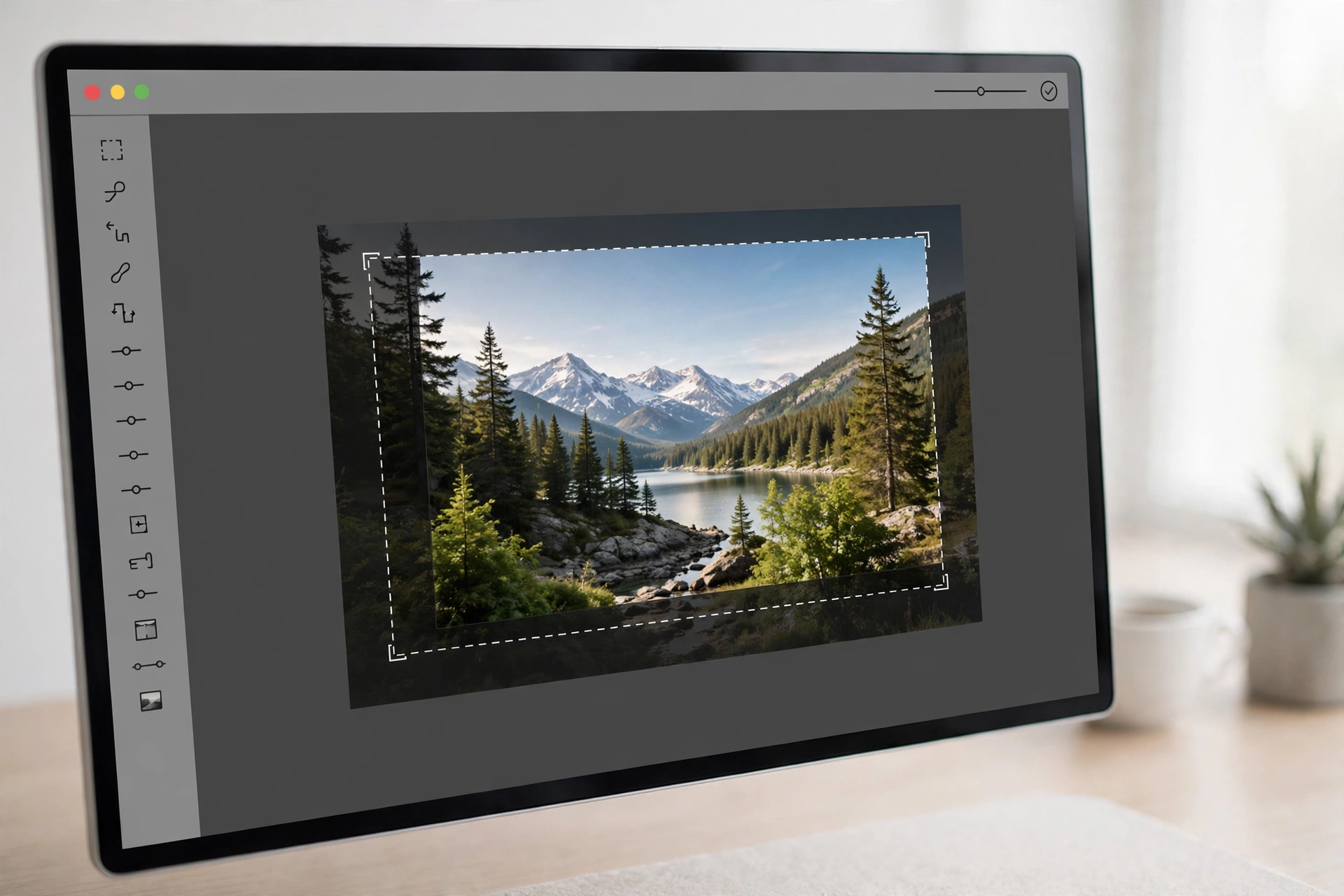
How to Use This Image Cropper Online in 4 Steps
- Choose your photo. Select a PNG, JPG, or WebP image from your device and open it in this image cropper online. It appears on the canvas below, scaled to fit.
- Pick a ratio, or leave it free. Choose 1:1, 4:3, 16:9, or another preset if you need a specific shape, or Free if any shape will do.
- Drag to select. Press and drag on the photo to draw the crop box around the part you want to keep. Drag again to draw a new box, or use Reset selection to start over.
- Crop and download. Choose PNG, JPG, or WebP, set the quality if needed, and press Crop & Download. A preview appears, with a download link for the cropped image.
Image Cropper Online: Ratios, Pixels, and Quality Explained
An aspect ratio is simply the relationship between width and height. A 1:1 image is as wide as it is tall, 16:9 is almost twice as wide as it is tall, and 9:16 is the tall phone-screen shape. Locking your crop to a ratio guarantees the result fits where it is going — a square profile slot, a wide banner, or a vertical story — without stretching or awkward empty bars. If you are not sure which ratio you need, crop freehand first, then try the presets and see which framing suits the picture best.
Pixels are the second thing to watch. Cropping can only keep pixels that are already there; it cannot invent detail. If you crop a small corner out of a large photo, the result will be smaller in pixels, and that is normal — it is the same photo, just a smaller piece of it. For a profile picture or a web image, a few hundred pixels across is usually plenty. For printing, you want more: roughly 300 pixels per inch of print size is the usual rule, so a 4-inch print wants about 1,200 pixels across. This image cropper online shows you the size of your selection, so you can check before you download.
File format is the third choice, and it matters after cropping. PNG keeps every pixel exactly and is best for graphics, screenshots, and anything with sharp text. JPG makes photos much smaller, at the cost of a little detail you rarely notice, and it opens everywhere. WebP sits between the two for web use. To learn how browsers draw and crop images on a canvas, see the Canvas API documentation from MDN.
Image Cropper Online vs Other Ways to Crop a Photo
| Method | Upload needed | Best for |
|---|---|---|
| This image cropper online | No | Fast, private cropping with preset ratios |
| Upload-based cropper | Yes | Extra features, at the cost of privacy |
| Phone gallery editor | No | Quick crops of photos already on your phone |
| Desktop photo software | No | Editing plus cropping, but needs installing |
For a simple, private crop, this image cropper online is the quickest method: no install, no account, and the result downloads straight to your device.
Everyday Scenarios for This Image Cropper Online
Making a square profile picture
Your favourite photo is a wide landscape shot, but the profile slot is square. With this image cropper online, choose the 1:1 ratio, drag the box over your face, and download a square crop that fits perfectly, with nothing stretched.
Cleaning up a screenshot
A screenshot caught the whole screen, but only the middle matters. Draw a freehand box around the important part, crop it, and share an image that gets straight to the point.
Fixing a crooked, sideways photo
A photo came out sideways from a camera. Rotate it 90 degrees with the rotate buttons, then crop out the empty edges left behind, and the picture is ready to use.
Common Mistakes When Cropping Photos
The biggest mistake is cropping from an already-small image and expecting a large result. If you crop a tiny corner out of a photo and then stretch it back up to full size, it will look soft and blurry, because the detail was never there. Always crop from the largest original you have, and check the selection size before downloading. If the crop is too small for what you need, take a step back: crop less tightly, or use a different photo.
Another mistake is cropping too tightly around a face or a subject, cutting off the top of a head or the edge of an important object. Leave a little breathing room around the subject; a slightly looser crop almost always looks better than a cramped one. And always keep the original when you use an image cropper online. Crop a copy, download the result, and keep the untouched photo safe, so you can re-crop it differently later if the first version does not work out.
Image Cropper Online: Frequently Asked Questions
No. This tool runs entirely in your browser. Your photo is cropped on your own device and is never uploaded, stored, or sent to a server.
Yes. Choose a preset ratio such as 1:1, 4:3, or 16:9, and the selection box keeps that shape as you drag. Choose Free if you want any shape at all.
Cropping itself does not reduce the quality of the pixels you keep. The cropped area is saved at its original resolution, unless you download it as JPG, which always applies a little compression.
PNG, JPG, and WebP. PNG is lossless, JPG is smallest for photos, and WebP is a good balance for images going on a website.
Yes. Use the rotate buttons to turn the photo 90 degrees left or right, then draw your crop selection on the rotated photo.
In short, this image cropper online is the fast, private way to cut any photo down to the part that matters — the right shape, the right subject, and nothing uploaded anywhere.