
PDF Compressor Online
Reduce PDF file size in your browser, free, with no upload. This pdf compressor online rewrites your PDF more efficiently, removes extra metadata, and shows you the exact before and after sizes before you download anything.
Choose a PDF, then press Compress PDF. Nothing is uploaded.
Result
Download compressed PDFYour PDF never leaves this device. If the optimised file is not smaller, keep your original — the tool will tell you honestly either way.
Why Use This PDF Compressor Online?
PDF files get big for quiet reasons. A PDF can carry unused objects left over from editing, metadata you never asked for, and streams that were never compressed. A pdf compressor online that runs in your browser can clean up that structure without touching what the document actually says or shows. That is the whole idea of this tool: a smaller file, the same pages, and no upload in between.
Smaller PDFs are easier to send as email attachments, easier to upload to forms with size limits, and faster to open on a slow connection or a phone. If you have ever had a form reject a PDF for being too large, or waited for a heavy report to download, you know why a pdf compressor online is worth having in your bookmarks. This one is free, needs no account, and works on any device with a modern browser.
Privacy is the other reason to compress in the browser. Many online compressors ask you to upload a document to their server, wait, and then download it again. That is a poor fit for contracts, invoices, school work, or anything personal. With this pdf compressor online, your file is read and rewritten on your own device. Nothing is sent anywhere, nothing is stored, and closing the tab ends the job completely. For a fuller PDF workflow, pair it with our PDF Merger Online and PDF Splitter Online, and browse the full PDF Tools collection.
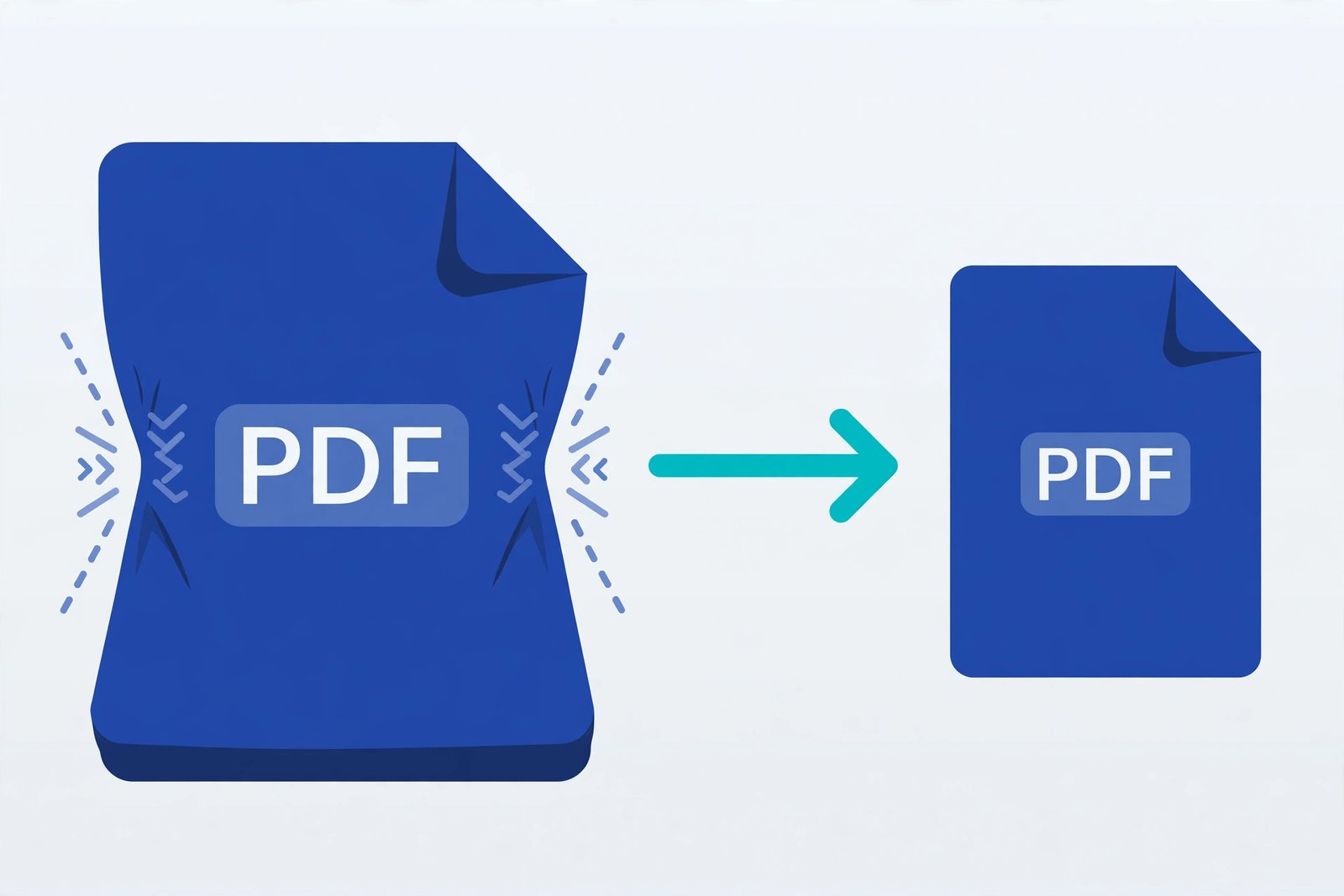
How to Use This PDF Compressor Online in 4 Steps
- Choose your PDF. Click the file picker and select the PDF you want to shrink.
- Keep metadata removal on, or turn it off. Removing metadata usually saves a little more space. Turn it off if you want to keep the document title and author fields exactly as they are.
- Press Compress PDF. The tool rewrites the file in your browser, compresses its object streams, and measures the result.
- Check the sizes, then download. You will see the original size, the new size, and how much was saved. Download only if the result is actually smaller.
PDF Compressor Online: What It Can and Cannot Compress
Honesty matters here, because not every PDF shrinks the same way. This pdf compressor online works on the structure of the file: it rewrites the document with compressed object streams, drops unused objects where the library can do so safely, and optionally strips metadata. That reliably helps PDFs that were saved without optimisation, PDFs edited many times, and PDFs carrying extra metadata.
What it cannot do is magically shrink photos that are already compressed. If a PDF is mostly JPEG photos that are already small, there is little structure left to save, and the result may be only slightly smaller — or, rarely, the same size. That is not a failure of the tool; it is the file already being efficient. The tool shows you the real numbers so you never have to guess, and it never changes your pages, text, or images to force a smaller number.
For the best results on photo-heavy PDFs, compress the images before they go into the PDF, or use our image tools to shrink them first. For documents, reports, forms, and scanned paperwork that has been re-saved a few times, this pdf compressor online is often all you need. If you need to split a large PDF before compressing it, use the PDF Splitter first, then compress only the part you need to send.
PDF Compressor Online vs Other Ways to Shrink a PDF
| Method | Upload needed | Best for |
|---|---|---|
| This pdf compressor online | No | Quick, private structure optimisation |
| Upload-based compressor | Yes | Heavy photo recompression, at the cost of privacy |
| Desktop PDF software | No | Full control, but needs installing and often paying |
| Printing to a new PDF | No | Last resort; often loses links and text quality |
The browser method wins on speed and privacy for everyday files. You do not install anything, you do not create an account, and you do not hand your document to a stranger's server. For more on how PDF files are structured, see the official ISO 32000 PDF standard.
Everyday Scenarios for This PDF Compressor Online
Sending a report by email
Your report is 12 MB and your email limit is 10 MB. Run it through this pdf compressor online, check the new size, and send the smaller file without splitting the report or losing a page.
Uploading a form or application
Government and job portals often cap uploads at a few megabytes. Compressing first means your application goes through on the first try, instead of bouncing back for being too large.
Sharing notes on a slow connection
Class notes and scanned handouts can be surprisingly heavy. A smaller PDF opens faster for everyone, especially on a phone, and uses less mobile data.
Common Mistakes When Shrinking a PDF
The most common mistake is compressing the same file over and over, hoping it will keep getting smaller. It will not. Once a PDF has been optimised, a second pass usually saves almost nothing, because there is no more waste structure left to remove. Compress once, check the result, and move on. If the file is still too large after one honest pass, the problem is usually the images inside it, not the structure, and a different approach — smaller images, or fewer pages — will help more than repeated compression.
Another mistake is deleting the original before checking the compressed file. Always open the new PDF first and make sure every page, link, and form field you need is still there. This tool does not change pages or text, but checking takes ten seconds and saves a painful surprise later, especially for applications, contracts, and coursework. Keep the original until you have confirmed the compressed version opens correctly on the device you will use to send it.
A third mistake is trusting a file size shown by a website that never shows its working. If a compressor does not tell you the before and after sizes, you cannot tell whether it helped, hurt, or simply re-saved the file unchanged. That is why this page always shows both numbers in plain kilobytes or megabytes. A pdf compressor online should earn your trust with numbers, not with a vague claim about how much smaller your file will be. Finally, remember that compressing a PDF does not make it more secure: anyone who receives it can still read it, so do not use compression as a substitute for password protection or for removing sensitive information before you share a document.
PDF Compressor Online: Frequently Asked Questions
No. This pdf compressor online runs entirely in your browser. Your PDF is read and rewritten on your own device, and it is never uploaded, stored, or sent to a server.
It depends on the file. PDFs with unused objects, extra metadata, or uncompressed streams shrink the most. PDFs whose photos are already compressed may shrink only a little, and the tool always shows the before and after sizes so you can see the real result.
No. This tool rewrites the PDF structure without changing its pages, text, or images. If the result is not smaller, you can simply keep your original file.
There is no server limit because there is no server. Very large PDFs are limited only by your device's memory and browser, so extremely large files may take longer to process.
No. Encrypted or password-protected PDFs cannot be opened by this tool in your browser, and you should remove protection in your own PDF software first if you have the right to do so.
In short, this pdf compressor online is the fast, private way to make a PDF smaller before you send it, upload it, or share it — with the real numbers shown before you download, every time.