
The best way to generate a strong password is to stop inventing them yourself. Pick a method — a four-word passphrase you can actually remember, or a random 16-character password made by a generator and stored in a password manager — and let the method do the work. Guessing a password by hand is how people end up with “Summer2024!” on every account.
This guide covers both methods in full, explains what NIST actually says in its 2025 guidance, and shows you how to check whether a password you already use is strong enough. The short version: length beats complexity, every account needs its own password, and a password manager removes the need to memorise any of them.

What Makes a Password Strong in 2026
A strong password has three properties: it is long, it is unique to one account, and it is not something an attacker can guess from your life or a leaked password list. Length matters more than anything else. Each extra character multiplies the number of possible passwords, so a password of 16 characters is vastly harder to crack than one of 8 — not twice as hard, but millions of times harder.
The old rules did more harm than good. Forcing a capital letter, a number, and a symbol produced passwords like “P@ssw0rd1” — hard for a person to remember, easy for a machine to guess, because attackers know the substitutions. NIST (the U.S. National Institute of Standards and Technology) dropped the complexity rules years ago and now emphasises length, uniqueness, and checking passwords against lists of compromised credentials.
A strong password also has to be one you will not reuse. The most common way accounts are taken over is not someone guessing your password — it is a data breach at one service leaking a password you also used somewhere else. A password that is unique to one account is worth more than a clever password used on twenty.
How to Generate a Strong Password: The Passphrase Method
A passphrase is a password made of several unrelated words: correct horse battery staple. Four random words give you roughly the same strength as a 16-character random password, and you can actually remember it. The words must be genuinely random — picked from a word list, not chosen because they mean something to you. “MyDogLovesPizza” is a sentence, not a passphrase.
How to make one:
- Open a word list — the EFF’s diceware list is a good one — or use a generator that builds passphrases.
- Pick four words at random. If you want to do it by hand, roll five dice per word and look up the result in the list.
- Join the words with a separator: spaces, hyphens, or nothing at all. “correct-horse-battery-staple” works on almost every site.
- Check the result is at least 15 characters long. Four average words plus separators usually land between 20 and 30 characters.
Use passphrases for the passwords you actually type: your password manager’s master password, your email account, your computer login. For everything else, generate random passwords and let the manager remember them.
How to Generate a Strong Random Password (16 Characters or More)
For accounts you never type by hand, a random password is the right tool. Let a generator pick it — your brain is a poor random-number source. Set the generator to at least 16 characters, using upper and lower case letters, digits, and symbols. At 16 characters from a 90-character set, the number of possible passwords is around 10^31 — no attacker is going to try them all.
Our password generator builds one in a click, entirely in your browser: choose the length and character types, and copy the result straight into your password manager. Nothing is sent to a server. Pair it with our password strength checker to see how a password you already use scores — if it comes back weak, generate a replacement on the spot.
Two practical rules for random passwords. First, never shorten a generated password to make it easier to type — if you are typing it often enough for that to matter, it should be a passphrase instead. Second, store it in a password manager immediately; a password you cannot find again is no password at all.
What NIST Says About Strong Passwords (SP 800-63B)
NIST’s password guidance lives in Special Publication 800-63B, and the current edition — the second public draft of revision 4, published in 2024 with final guidance expected in 2025 — changed several long-standing rules. The points that matter for everyday users:
- Minimum length is 15 characters for passwords chosen by the user, and 8 characters is the floor below which a password must be rejected. Services should accept passwords up to at least 64 characters.
- No more forced complexity rules. Services should not require a mix of character types, and should not force password changes on a schedule.
- Check against compromised passwords. When you set a password, the service should check it against lists of breached and commonly used passwords and reject it if it appears.
- Allow paste. Password fields must let you paste, so password managers work properly. A site that blocks paste is fighting its own users’ security.
- Show the password option. Services should offer a way to reveal what you typed, so you can check for typos instead of failing a login.
The scheduled-password-change rule deserves a note: NIST says to change a password only when there is evidence it has been compromised — a breach, a phishing attempt, a suspicious login — not every 90 days. Forced rotation pushes people toward weaker passwords with a number at the end.
Password Managers vs Memory: Where to Keep Them
A password manager is a vault that stores your passwords behind one master password. You remember one strong passphrase; the manager remembers the rest, fills them in on websites, and generates new ones when you need them. Without one, the advice in this guide is nearly impossible to follow — nobody can remember a hundred unique 16-character passwords.
Choosing one is less important than using one. The well-known options — Bitwarden, 1Password, Dashlane — all do the same core job: encrypted storage, autofill, and a generator. Bitwarden is free for individuals and open source. Your browser’s built-in password manager is better than nothing, but a dedicated manager syncs across devices and browsers, warns you about reused passwords, and works when you switch browsers.
The master password is the one password you must remember, and it is the one that most deserves a passphrase: four or five random words, written down on paper and kept somewhere safe until it is in your memory. If you forget it, there is no reset — that is the point of the encryption, and also the risk.
Passkeys: The Password-Free Option
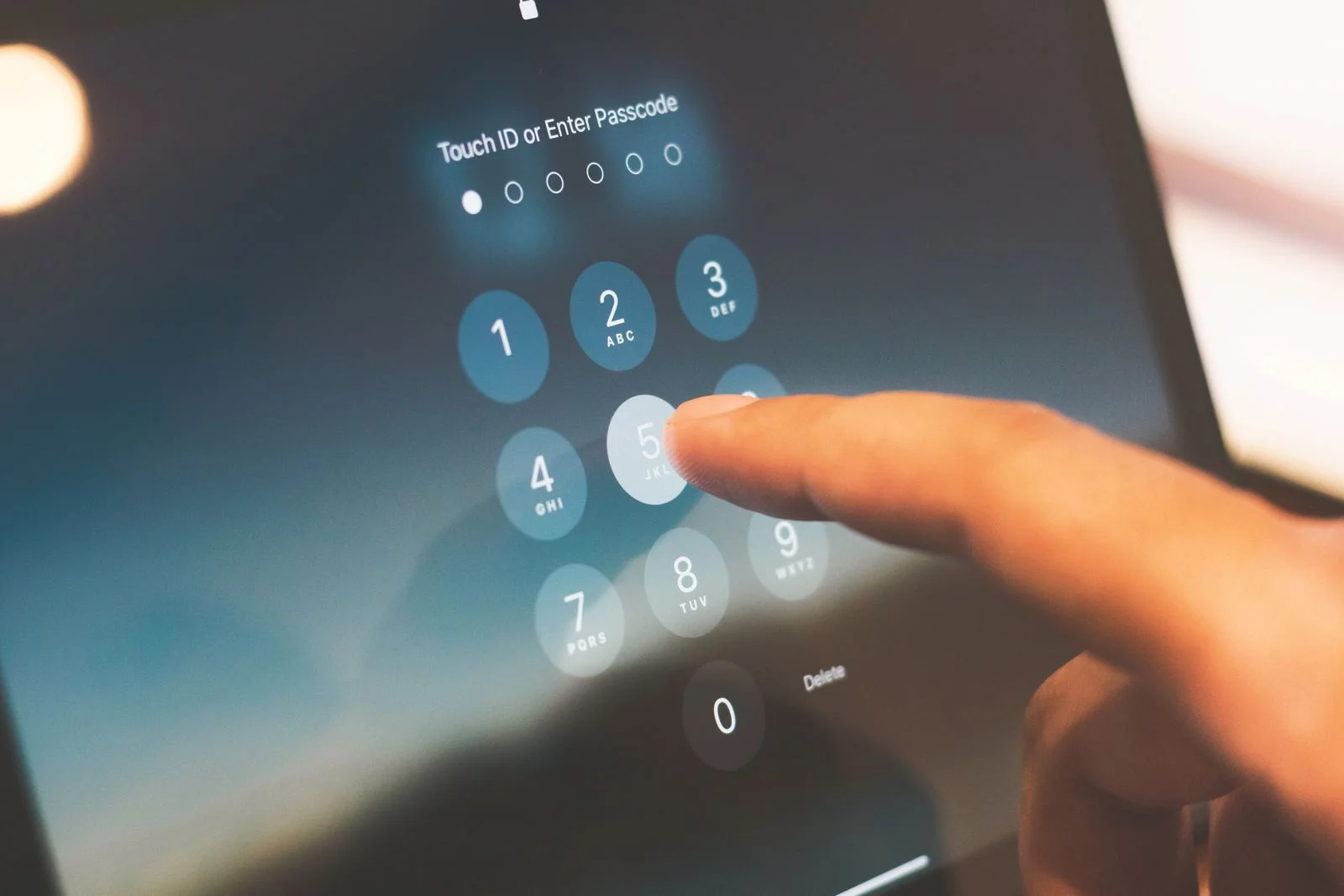
A passkey is a login method that replaces the password entirely. Instead of a secret you type, your device holds a cryptographic key pair: the website keeps the public half, your phone or computer keeps the private half, and you approve the login with your fingerprint, face, or PIN. There is nothing to type, nothing to remember, and nothing a phishing site can steal — a passkey only works on the real site it was created for.
Most major services now support passkeys: Google, Apple, Microsoft, Amazon, PayPal, and many others. When a site offers to create one, take it — it is stronger than any password, and faster to use. Passkeys sync across your devices through your platform account (Apple iCloud Keychain, Google Password Manager), so a passkey created on your phone works on your laptop.
Passkeys do not make passwords obsolete overnight. Many sites still use passwords, and you will still need a password manager for those. The practical approach is to use passkeys where they are offered and strong generated passwords everywhere else. If you manage a website, our guides to creating a robots.txt file and creating a sitemap cover the other files a site needs — and protecting your admin login with a passkey is the single best security step for a small site.
How to Generate a Strong Password: Tips That Work (Quick Checklist)
- Use a passphrase (four random words) for passwords you type, and a generated 16+ character password for everything else.
- Never reuse a password across accounts — a breach at one site becomes a breach at all of them.
- Store every password in a password manager, and protect the manager with a strong passphrase.
- Turn on two-factor authentication on your email, bank, and password manager accounts.
- Change a password only when there is evidence it is compromised, not on a schedule.
- Take the passkey option whenever a site offers it.
How to Generate a Strong Password Tips: Frequently Asked Questions
How long should a strong password be?
NIST recommends at least 15 characters for passwords you choose yourself, and at least 16 characters is a good rule of thumb for generated passwords. A four-word passphrase is usually 20 to 30 characters and is easier to remember than a 16-character random string.
Is a passphrase better than a random password?
For passwords you type, yes — a four-word passphrase is about as strong as a 16-character random password and far easier to remember. For passwords a manager stores and fills in for you, a random password is slightly stronger and you never need to remember it, so either is fine.
Should I change my passwords every 90 days?
No. NIST’s current guidance says to change a password only when there is evidence it has been compromised. Scheduled rotation leads people to weaker passwords with small variations, which is worse than a strong password kept for years.
Are password managers safe?
A reputable password manager encrypts your vault so that even the company cannot read it. The real risk is your master password: if it is weak or reused, the vault is only as strong as that one password. Use a long passphrase for the master password and turn on two-factor authentication.