
QR Code Scanner Online
Point your camera at a code, or drop in a photo, and read what it says — free in your browser, with no app and no upload. This qr code scanner online decodes QR codes from an image file or straight from your camera, and shows the link, text, or Wi-Fi details hidden inside.
Choose a photo, a screenshot, or a saved ticket that contains a QR code. The image is read at once.
Upload an image or press Scan with camera. Nothing is uploaded.
For the best results, use a clear, well-lit photo with the whole code in frame. Camera scanning needs your permission and works over HTTPS.
Why Use This QR Code Scanner Online?
QR codes are everywhere now — on menus, tickets, posters, and parcels — and most of them hide a web link, a payment address, or a Wi-Fi password. Typing a long link from a poster is slow and error-prone, and a phone camera that refuses to recognise a code is no help at all. A qr code scanner online reads the code for you in one click, so you get the link or text without typing anything and without installing an app you will use once.
Privacy is the other reason to scan in the browser. A code can point anywhere, and a scanner app that uploads every code you scan is collecting a record of the posters you read and the tickets you hold. This scanner runs entirely on your own device: the photo never leaves your computer, the camera feed is processed frame by frame in the page, and nothing is stored once you close the tab.
Speed matters too. There is nothing to download, nothing to sign up for, and no account to create — open the page, upload the photo or switch on the camera, and the result appears in seconds. This qr code scanner online sits in our Text Utilities collection for every reading job, from a code on a receipt to a ticket on your screen, and it works on desktop and mobile alike.
How to Use This QR Code Scanner Online in 4 Steps
- Upload a photo. Choose an image file that contains a QR code, or drag it onto the upload box. The qr code scanner online reads it at once and shows the result below.
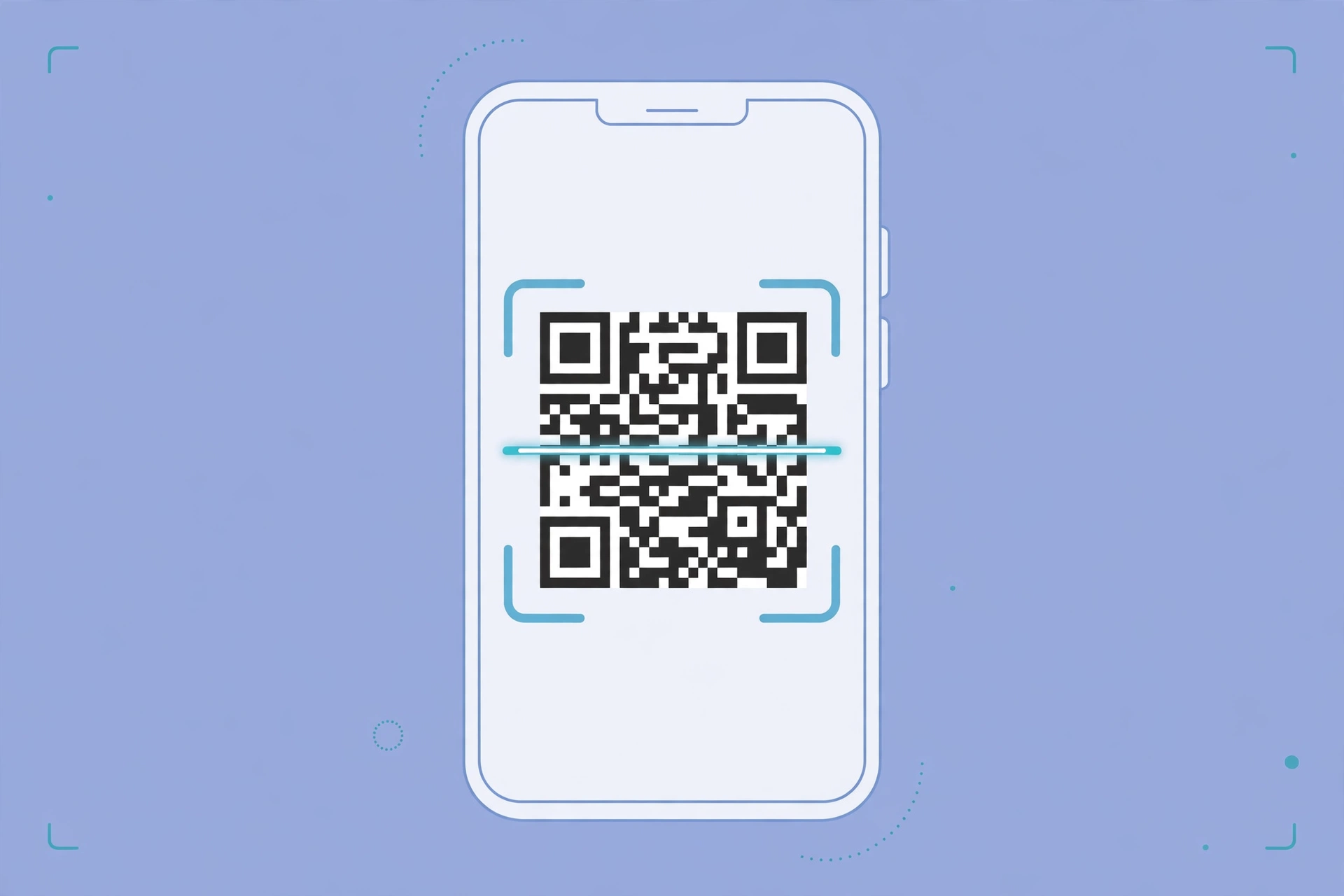
- Or scan with your camera. Press Scan with camera, allow the browser to use your camera, and hold the code inside the frame. The scanner checks each frame and stops as soon as it finds a code.
- Read the result. The decoded text appears in the result box — a link, plain text, or contact details — with a Copy button beside it.
- Use it or clear it. Tap the link to open it, copy the text to use elsewhere, or press Clear to scan another code.
QR Code Scanner Online: How the Reading Actually Works
A QR code is a grid of black and white squares that stores data in two directions, which is why it can hold far more than a barcode — a web address, a block of text, or a whole Wi-Fi login. Three large squares in the corners tell the reader where the code starts and which way up it is, and the rest of the grid carries the data plus error correction. This qr code scanner online first finds those corner squares, then reads the grid row by row and turns the pattern back into text.
Error correction is what makes QR codes forgiving. Up to about a third of a code can be damaged, dirty, or covered and the data can still be recovered, because the code carries spare copies of its own information. That is why a slightly creased ticket still scans. This qr code scanner online uses the same reading rules as a phone camera, so a code that scans here will scan anywhere — and one that is too blurry to read here will not read on a phone either.
The camera mode works the same way, one frame at a time: each video frame is drawn onto a hidden canvas and checked for a code, several times a second, until a code is found. Nothing is recorded and no frame leaves your device. For the full story of how the pattern is laid out, and the error-correction levels behind it, see the QR code article on Wikipedia.
QR Code Scanner Online vs Other Ways to Read a Code
| Method | Needs installing | Reads from a photo | Reads with camera | Best for |
|---|---|---|---|---|
| This qr code scanner online | No | Yes | Yes | Reading a code from a photo or live |
| A phone camera app | No, built in | No | Yes | One quick scan on your phone |
| A scanner app | Yes | Sometimes | Yes | Scanning many codes in a row |
| Typing the link by hand | No | No | No | Nothing — slow and error-prone |
For reading a code you already have as a photo, or one on a screen in front of you, this qr code scanner online is the simplest choice — and it never keeps your photos.
Everyday Scenarios for This QR Code Scanner Online
Reading a QR code from a screenshot with this qr code scanner online
Someone sends you a screenshot of a QR code in a chat, and your phone camera cannot scan its own screen. Save the screenshot, upload it here, and the link appears in seconds — no second phone needed, and no need to print the screenshot out.
Checking a ticket code before you travel with a qr code scanner online
Your train or event ticket arrives as a QR code in an email, and you want to know it actually works before you reach the gate. Upload the ticket image and read the text it carries: if the code decodes cleanly here, it will scan at the gate too. If it does not, you still have time to ask for a fresh ticket.
Reading a Wi-Fi code on a cafe table with this qr code scanner online
The cafe's Wi-Fi password is printed as a QR code on the table, but your phone will not join the network. Scan the code with your camera here and read the network name and password as plain text, then type them in by hand. It is the slow way round a smart code, but it works when the automatic join does not, and this qr code scanner online shows you the password instead of hiding it.
Common Mistakes When Using a QR Code Scanner Online
The biggest mistake is scanning a blurry photo. A code with soft edges or a strong glare reads as noise, and no reader can fix a photo that does not show the squares clearly. Take the photo straight on, in good light, with the whole code in frame — and if the photo is blurry, take a sharper one rather than scanning the same image again. A qr code scanner online can only read what the picture actually shows.
The second mistake is trusting a code without reading it. A QR code can point to any web address, including a fake login page, so always read the decoded link before you tap it, and check the address looks like the site you expect. The third mistake is covering part of the code with a finger or a shadow when scanning with a camera — keep the whole code visible and still, and let the camera focus before you move on.
QR Code Scanner Online: Frequently Asked Questions
No. This qr code scanner online runs entirely in your browser. The photo you upload is read on your own device and is never uploaded, stored, or sent to a server, and the camera feed never leaves the page.
The usual reasons are a blurry photo, glare on a screen, or a code that is too small in the frame. Try a sharper photo taken straight on, in good light, with the whole code visible. Very small codes on a busy background also fail, because the reader cannot tell the code apart from the pattern around it.
Yes. Save the screenshot as an image file and upload it here. The scanner reads codes from any image, so a screenshot, a photo of a poster, or a saved ticket all work the same way.
Yes, if your browser allows camera access. Press Scan with camera, allow the permission, and hold the code in the frame. Camera scanning needs HTTPS, so it works on this site and on any page served over a secure connection.
A QR code can hold a web link, plain text, a phone number, an email address, contact details, or a Wi-Fi network name and password. This scanner shows you the raw text, so you can see exactly what the code contains before you act on it.
In short, this qr code scanner online is the fast, private way to read any QR code — from a photo, a screenshot, or your camera — without an app and without uploading anything.